


Do Smart Home Devices slow down Wi-Fi?
By: Vincent Totino
Read Time: 9 min.
July 23, 2026
Yes, smart home devices can slow down your Wi-Fi but rarely one at a time. A single smart bulb or plug uses under 1 Mbps. Slowdowns start when 20+ always-on devices share bandwidth and crowd the same 2.4 GHz channels. Cameras and video doorbells have the biggest impact.
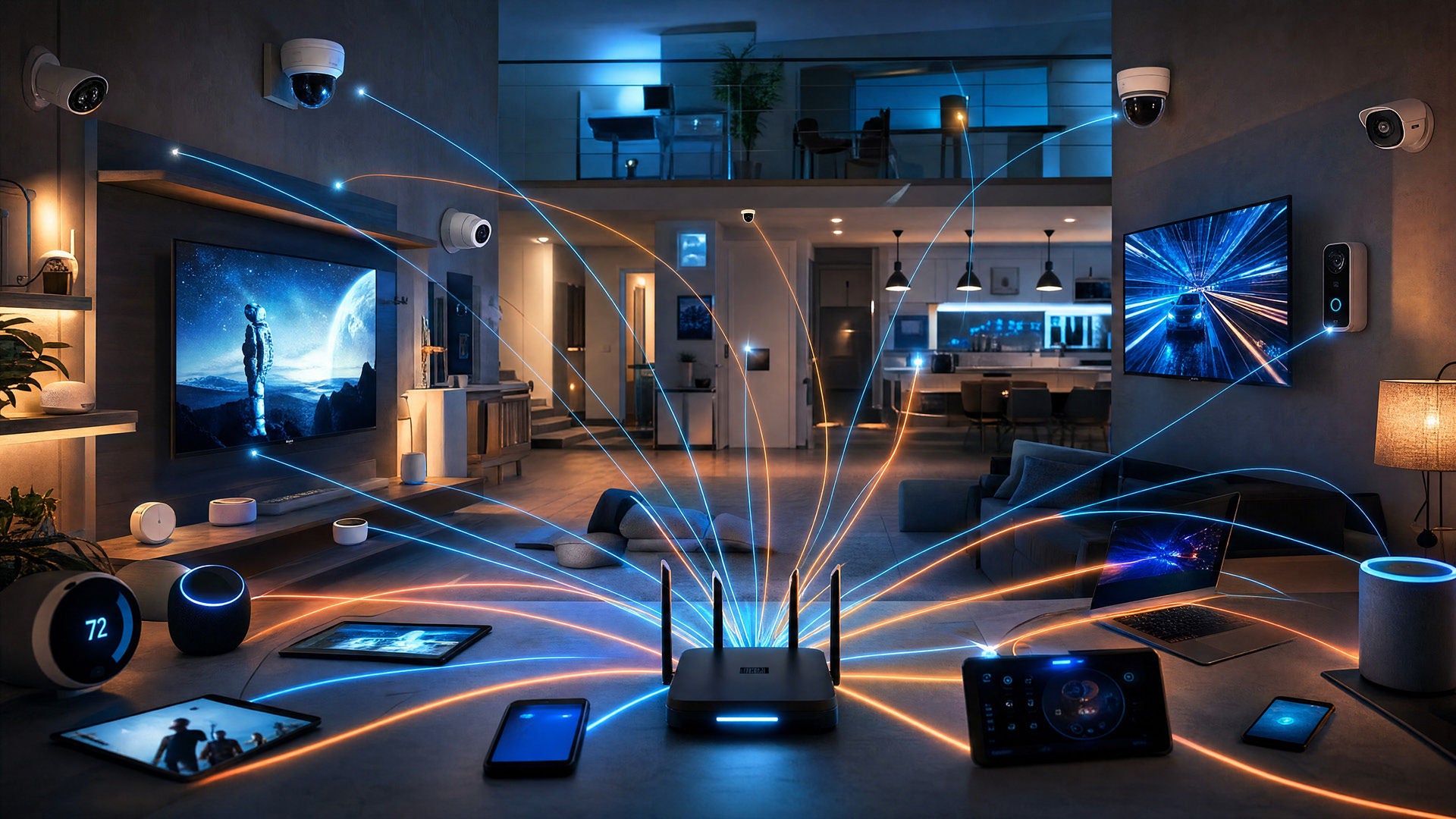
How smart devices affect Wi-Fi performance
Your Internet plan delivers a set amount of bandwidth, and every connected device shares it. Most smart gadgets sip rather than gulp, so the problem is rarely one device hogging the line.
It’s the combined weight of many devices talking at once that thins out what’s left for everything else, including the show you’re trying to stream.
Wi-Fi performance is a numbers game
The average US household now runs around 27 connected devices, and that number keeps climbing. Add phones, laptops, TVs and consoles to your smart gear and your router is juggling dozens of conversations at the same time.
Even when each device only needs a little, your router can actively serve a limited number at once. During busy moments the rest wait their turn, and that wait is what you feel as lag. If you're not sure where you stand, it's worth understanding how much Internet speed you really need before you blame the devices.
Background activity adds up
Smart devices don't go quiet when you walk away. They check in with the cloud, sync their status, pull firmware updates and, for cameras, upload clips around the clock.
A smart bulb or thermostat might use well under 1 Mbps, but multiply that small, constant chatter across 20 or more devices and you have steady background traffic competing with the things you actually notice, like a buffering episode or a frozen video call.
What is Wi-Fi channel congestion?
Bandwidth is only half the story. Your Wi-Fi also broadcasts on specific channels within a frequency band, and when too much traffic crowds the same channel, from your own devices and your neighbors', performance drops even if your plan is plenty fast.
That’s congestion, and it’s one of the most common reasons a fast connection still feels slow.
The 2.4 GHz crowding problem
The 2.4 GHz band reaches far and passes through walls well, which is exactly why most smart home devices default to it. But it's cramped: in the US it has only three non-overlapping channels, 1, 6 and 11. It also shares the airwaves with Bluetooth, baby monitors and even microwave ovens.
Older Wi-Fi makes devices take turns transmitting, so the more gadgets you pile onto a crowded 2.4 GHz channel, the more they collide, retry and slow each other down.
These smart devices use the most bandwidth
Not all devices pull their weight equally. Anything that streams video is in a different league from a sensor that pings a status update now and then. If your Wi-Fi bogs down right as the cameras kick on, that's no coincidence.
Video devices are bandwidth vampires
Cameras, video doorbells and streaming boxes are the heavy hitters because they push or pull a continuous video stream. Lights, plugs and thermostats barely move the needle, it's the always-recording video gear and 4K streams that dominate your network.
Here’s a rough guide to typical usage.
| Device Type | Typical bandwidth |
|---|---|
| Smart plug or bulb | Under 1 Mbps |
| Smart thermostat | Under 1 Mbps |
| Smart speaker / voice assistant | 2–5 Mbps when streaming audio |
| Video doorbell | 2–5 Mbps |
| Security camera (1080p) | 1–4 Mbps per stream |
| 4K streaming device | 15–25 Mbps |
How much bandwidth does a Ring doorbell use?
A Ring video doorbell typically uses about 1–2 Mbps for standard video and 2–4 Mbps for 1080p HD, and Ring recommends at least 2 Mbps of upload speed per device.
That sounds small, but doorbells and most cameras lean on upload and spike every time motion triggers a recording. Run several at once and they can crowd your network, which is why a video call stutters right as someone walks up to the door.
Worth knowing: most Ring doorbells connect only on 2.4 GHz, so they land squarely in the busiest part of your network.
Why IoT devices cause Wi-Fi congestion
IoT, the Internet of Things, is just the catch-all for every Internet-connected gadget in your home: locks, sensors, plugs, cameras and the rest. Individually they're light. Collectively, the way they stay connected is what taxes your router.
Always-on connection strains the router
Every device that joins your Wi-Fi holds an active connection and wakes up periodically to check in, even at 3 am. Your router has to track and service all of them, and an older router can only manage so many simultaneous conversations before it starts making devices queue.
So this is less about raw bandwidth and more about how gracefully your equipment handles a crowd, which is exactly where newer Wi-Fi technology earns its keep.
How to stop smart devices from slowing Wi-Fi
You don't need to unplug your smart home to fix this. A handful of practical moves clears up most slowdowns, and you can do them today.
Create a dedicated IoT network
Many routers let you spin up a separate network, or a guest network, just for smart devices. Keeping your bulbs, plugs and cameras in their own lane stops their constant chatter from competing with your laptop and TV.
It’s also better for security, since a compromised gadget stays walled off from the devices that hold your personal information.
Move video devices to 5 GHz
If a device supports 5 GHz, use it. The 5 GHz band has far more non-overlapping channels and much less interference than 2.4 GHz, which makes it ideal for bandwidth-hungry gear like streaming boxes and newer cameras.
One catch: many doorbells and older cameras are 2.4 GHz only, so check the device first. For those, giving them their own network does more good.
Use QoS to prioritize traffic
Quality of Service (QoS) settings let your router put important traffic, a work video call, say, ahead of a background firmware download. It won’t add bandwidth, but it makes sure the moments that matter get served first when the network is busy. It’s one of the most underused settings in a connected home.
Schedule updates during off-hours
Smart devices download firmware and back up footage on their own schedule, and several doing it at the same time can swamp your connection. Where your devices allow it, set updates and cloud backups for overnight or other low-use windows so they're not fighting your prime-time streaming.
Choose the right router for a smart home
If you've tried the tweaks and your network still strains, the equipment itself is often the ceiling. A router built for a connected home handles many devices far more gracefully than a basic one, it's the difference between your router and your Internet speed working together instead of against each other.
Look for Wi-Fi 6 and MU-MIMO support
Wi-Fi 6 was designed for exactly this problem. Two features do the heavy lifting. MU-MIMO lets the router talk to several devices at once instead of one at a time, and OFDMA splits each channel into smaller lanes so multiple devices can share it simultaneously.
Picture one clerk serving a single line versus several clerks each helping a few people at once, that's the difference as your device count climbs. Better still, Wi-Fi 6 brings these gains to the crowded 2.4 GHz band where most smart devices live.
Whole-home Wi-Fi systems fill the gaps
Range matters as much as raw speed. A camera in the garage or a sensor in the basement that barely catches a signal will drop and reconnect constantly, adding to the noise. A whole-home (mesh) Wi-Fi system blankets your space with one network name and hands devices off to the strongest point automatically, so everything stays solidly connected.
Optimum’s whole-home Wi-Fi is built around this. You get a Smart Wi-Fi 6 gateway, up to three extenders for wall-to-wall coverage and AI-driven optimization that scans your environment and shifts devices to cleaner channels on its own, the channel-congestion fix, handled for you.
And you can see every connected device, run a quick speed test and check your network health right in the My Optimum app, so a growing smart home stays easy to manage.
Frquently Asked Questions (FAQs)
What devices slow down Wi-Fi the most?
Video devices are the biggest draw - security cameras, video doorbells and streaming boxes - because they move a continuous video stream and often upload to the cloud. A 4K streaming device can use 15-25 Mbps, while a video doorbell or camera commonly uses 1-5 Mbps each. Smart bulbs, plugs and thermostats use very little on their own; they only become a factor in large numbers.
What are the disadvantages of a smart home?
The main trade-offs are network load, security and upkeep. Lots of always-on devices add background traffic and hold connections to your router, more Internet-connected gadgets mean more to keep secure and updated, and weak coverage in far corners can cause devices to drop and reconnect. The upside is that all three are manageable with a separate device network, regular updates and strong whole-home coverage.
How do you speed up smart home Wi-Fi?
Start with the free moves: put bandwidth-heavy devices on 5 GHz where supported, create a dedicated network for your smart gadgets, turn on QoS to prioritize important traffic and schedule updates for off-hours. If slowdowns persist, the fix is usually better equipment - a Wi-Fi 6 router with MU-MIMO, or a whole-home mesh system that delivers strong, consistent coverage to every device.
Is 500 Mbps enough for 20 devices?
For most homes, yes. With 20 typical smart devices plus everyday streaming and browsing, 500 Mbps leaves comfortable headroom, since the majority of those devices use very little at any given moment. The exceptions are homes running several 4K streams or multiple cloud cameras at once, where more speed and strong Wi-Fi coverage help. Keep in mind advertised speeds are for wired connections; actual Wi-Fi speeds can vary.
Find out how Optimum’s whole-home Wi-Fi offers fast, reliable connectivity for all your smart devices.
YOU MAY ALSO LIKE

How to Get Affordable Internet: Discounts, Cheap Bundles & Ways to Save
- Read Time: 9 min.
- Internet
- October 29, 2026

Online Safety for Seniors: A Guide to Spotting Scams & Staying Secure
- Read Time: 15 min.
- Internet
- October 29, 2026

Optimum vs. AT&T: Compare Internet speed, pricing and coverage
- Read Time: 8 min.
- Internet
- October 08, 2026